

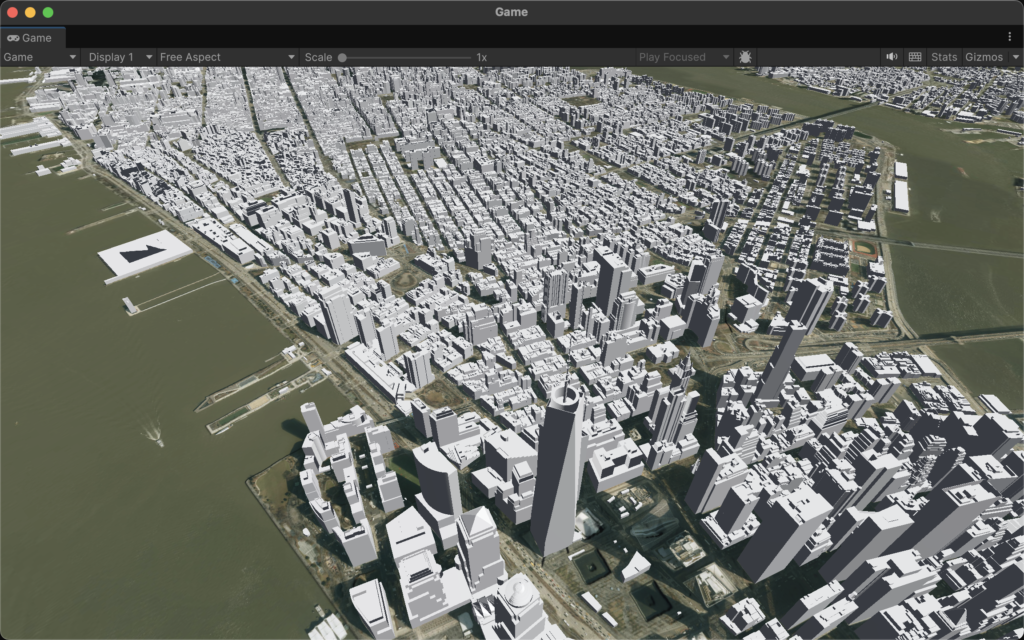
Extended Reality often stays trapped in the “wow” phase—visually stunning but operationally hollow. Esri shifts this narrative by replacing static, localized 3D models with live, OGC-compliant data streams that span the entire planet. By anchoring spatial computing in 64-bit precision and bi-directional field updates, the ArcGIS Maps SDK transforms XR from a boardroom novelty into a precision instrument for the modern digital enterprise.
How Do I3S and 3D Tiles Enable Scalable XR for the Enterprise?
The transition from desktop GIS to immersive Extended Reality (XR) necessitates a fundamental shift in how spatial data is handled. In a traditional 3D environment, a developer might load a handful of high-fidelity buildings or a localized terrain mesh. However, for a global enterprise, the scope is rarely limited to a single block. Whether it is a utility company managing thousands of miles of underground assets or a city government monitoring a digital twin of an entire metropolitan area, the data involved scales into the petabytes. The bottleneck is no longer the rendering power of the headset, but the efficiency of the data pipeline. This is where the Indexed 3D Scene (I3S) and 3D Tiles standards provide a critical architecture for streaming massive, OGC-compliant datasets without compromising the stability of the XR application.
How Does Streaming Petabytes Differ from Loading Static 3D Models?
In the enterprise world, the “demo” phase often relies on static formats like FBX or OBJ. While these are excellent for individual architectural assets, they are fundamentally “monolithic.” To view a model, the entire file must be loaded into memory. If an enterprise attempts to load a city-scale LiDAR scan or a complex integrated mesh of a factory via these formats, the hardware—be it an Oculus Quest 3 or a HoloLens 2—will instantly exhaust its RAM and crash.
Esri leverages I3S to solve this by treating the world as a streamable service rather than a file. Instead of downloading a massive dataset, the XR headset requests only the specific “nodes” or “tiles” that are within the user’s immediate frustum and proximity. This spatial indexing allows for a “World Scale” experience where the user can stand in a virtual New York City and look at a blade of grass, then zoom out to see the entire Eastern Seaboard without a single loading screen.
How Does Level of Detail (LOD) Manage XR Performance?
The core mechanism behind I3S scalability is the implementation of sophisticated Level of Detail (LOD) transitions. This process is governed by the distance between the user’s viewpoint (the camera) and the spatial data. When a user is positioned high above a city, the ArcGIS Maps SDK for Unity or Unreal Engine fetches a highly simplified version of the geometry. These low-poly versions of buildings or terrain use minimal textures and low vertex counts to ensure the frame rate remains high.
By using OGC-compliant I3S, enterprises ensure that their 3D data is interoperable across different platforms while maintaining a direct link to the underlying GIS attributes. If a field worker in an XR headset clicks on a pipe, they aren’t just clicking a mesh; they are querying a database that resides within the indexed layer. Standard 3D formats lose this “intelligence” during the export process, whereas I3S preserves the link between the 3D geometry and the enterprise data records.
What Does a JSON Definition for an I3S Building Layer Look Like?
To understand how an I3S layer manages these transitions, one must look at the underlying layer definition. This JSON structure dictates how the ArcGIS Maps SDK interprets the data nodes and when to trigger an LOD swap based on the “Max Error” or “Screen Space Error” (SSE) metrics.
{
  "id": 0,
  "name": "Enterprise_Digital_Twin_Buildings",
  "layerType": "3DObject",
  "spatialReference": {
    "wkid": 4326,
    "latestWkid": 4326
  },
  "lodSelection": [
    {
      "metricType": "maxScreenThreshold",
      "maxError": 16.0
    }
  ],
  "nodePages": {
    "nodesPerPage": 64,
    "lodModel": "qualitative"
  },
  "geometryDefinitions": [
    {
      "geometryBuffers": [
        {
          "combined": true,
          "attributeByteCounts": [4, 4, 12],
          "attributeNames": ["position", "normal", "uv0"]
        }
      ]
    }
  ],
  "attributeStorageInfo": [
    {
      "name": "Building_ID",
      "type": "string",
      "encoding": "utf-8"
    },
    {
      "name": "Occupancy_Status",
      "type": "int32"
    }
  ]
}
How Is a Global Scene Configured within the Unity Environment?
Implementing this level of scalability within an enterprise XR app requires the ArcGIS Maps SDK for Unity. The process begins with the initialization of an “ArcGIS Map” object, which is set to a “Global” state. Unlike a “Local” scene, which uses a flat Cartesian coordinate system, a Global scene accounts for the curvature of the Earth using the WGS84 ellipsoid.
What is Floating Point Jitter and Why Does It Threaten Enterprise XR?
In the realm of standard game development, the world is typically small. Whether it is a first-person shooter level or a racing track, the boundaries rarely extend beyond a few square kilometers. To handle the positioning of objects within these confined spaces, game engines like Unity and Unreal Engine traditionally rely on 32-bit single-precision floating-point math. This system is highly efficient for hardware rendering but carries a mathematical “ceiling.” A 32-bit float provides approximately seven decimal digits of precision.
As a user moves further away from the world origin—the designated point—the gap between representable numbers grows larger. When an enterprise attempts to map a digital twin of an entire country or coordinate assets across continents, the distance from the origin becomes so vast that the engine can no longer calculate small movements accurately. The result is “floating point jitter,” where 3D models appear to vibrate, shake, or jump erratically. For a “demo,” this might be a minor visual glitch; for a serious enterprise application where an engineer needs to inspect a high-pressure valve with millimeter accuracy, it is a catastrophic failure.
How Does 64-Bit Double Precision Restore Stability to Global Scales?
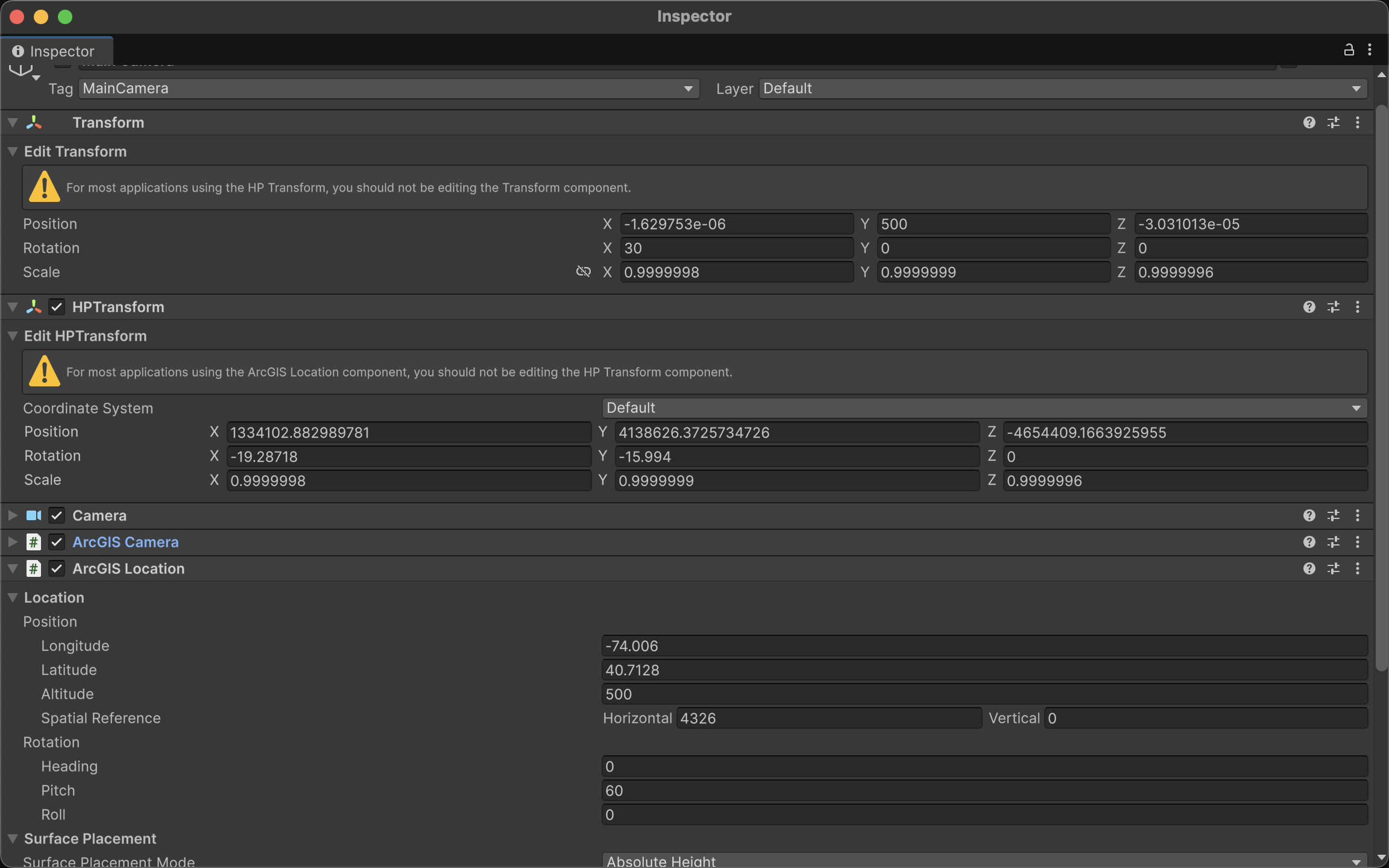
Esri addresses this fundamental limitation by bypassing the standard engine transform systems in favor of a 64-bit double-precision coordinate system. While a 32-bit float struggles at the edges of a city, a 64-bit double provides 15 to 17 decimal digits of precision. This massive increase in mathematical “headroom” allows the ArcGIS Maps SDK to maintain millimeter-level accuracy anywhere on the planet.
The mathematical logic involves a constant re-calculation of the “local” world. Instead of the camera moving millions of meters away from , the SDK keeps the camera at or near the center of the engine’s coordinate space. As the user moves through the global WGS84 coordinate system, the SDK mathematically shifts the entire world in the opposite direction.
In this equation, represents the 32-bit coordinate used by the GPU to render the object, is the 64-bit high-precision coordinate of the asset, and is the current 64-bit origin of the active scene. By keeping the difference between the camera and the objects small within the local space, the precision loss of 32-bit rendering is never triggered, allowing for seamless “World Scale” navigation.
How Do You Implement High-Precision Coordinates via Scripting?
For developers, interacting with this high-precision system requires moving away from the standard transform.position and using the ArcGIS-specific components. Below is an example of how to programmatically set a precise location using WGS84 coordinates (Latitude, Longitude, and Altitude).
using Esri.ArcGISMapsSDK.Components;
using Esri.GameEngine.Geometry;
using UnityEngine;

public class SetPreciseLocation : MonoBehaviour
{
    public ArcGISLocationComponent arcGISComponent;

    void Start()
    {
        // Defining a precise location for Esri Headquarters in Redlands, CA
        // Longitude: -117.1825, Latitude: 34.0556, Altitude: 400m
        var spatialReference = ArcGISSpatialReference.WGS84();
        var arcGISLocation = new ArcGISLocation(new ArcGISPoint(-117.1825, 34.0556, 400, spatialReference));

        // Applying the high-precision location to the ArcGIS Component
        if (arcGISComponent != null)
        {
            arcGISComponent.Position = arcGISLocation;
        }
    }
}
How Can You Smoothly Interpolate Between Two Global Sites?
In enterprise XR, “teleporting” can be disorienting. Developers often need to create smooth transitions between global locations. Because we are dealing with a curved Earth (ellipsoid), a simple linear interpolation () in Cartesian space would result in the camera dipping through the ground. Instead, we must interpolate across the geographic coordinates.
The following script demonstrates how to smoothly move an ArcGIS camera from a site in Singapore to a site in London by interpolating Latitude, Longitude, and Altitude.
Spatial computing matures when it stops being a viewing experience and starts being an operational one. By solving the technical hurdles of jitter, scale, and data persistence, Esri transforms XR into a reliable extension of the enterprise geodatabase. For organizations managing complex assets at a global scale, these tools provide the precision and connectivity necessary to turn a virtual perspective into a tangible competitive advantage.